
Resize two neighboring photos at once (shared edge handle)
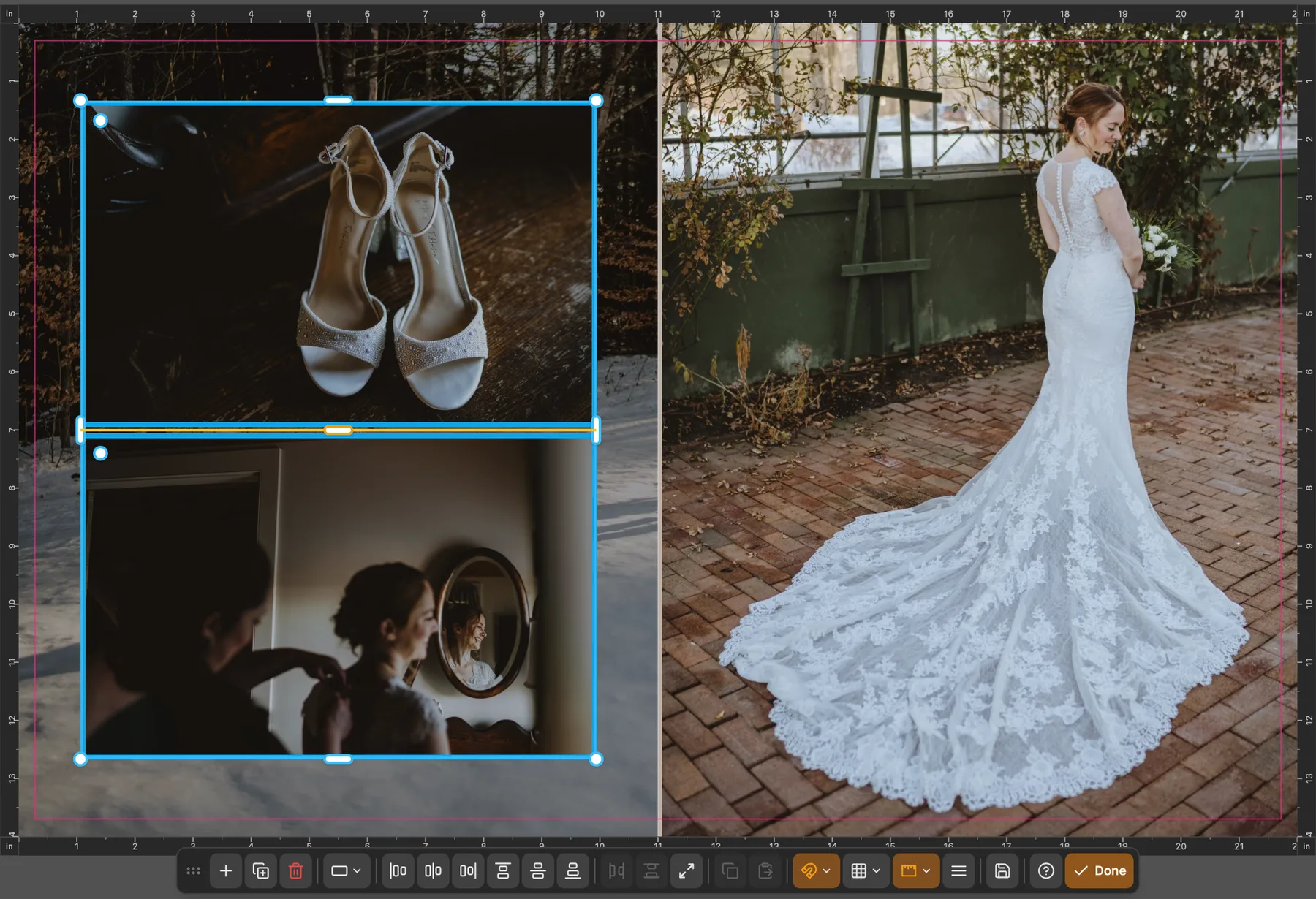
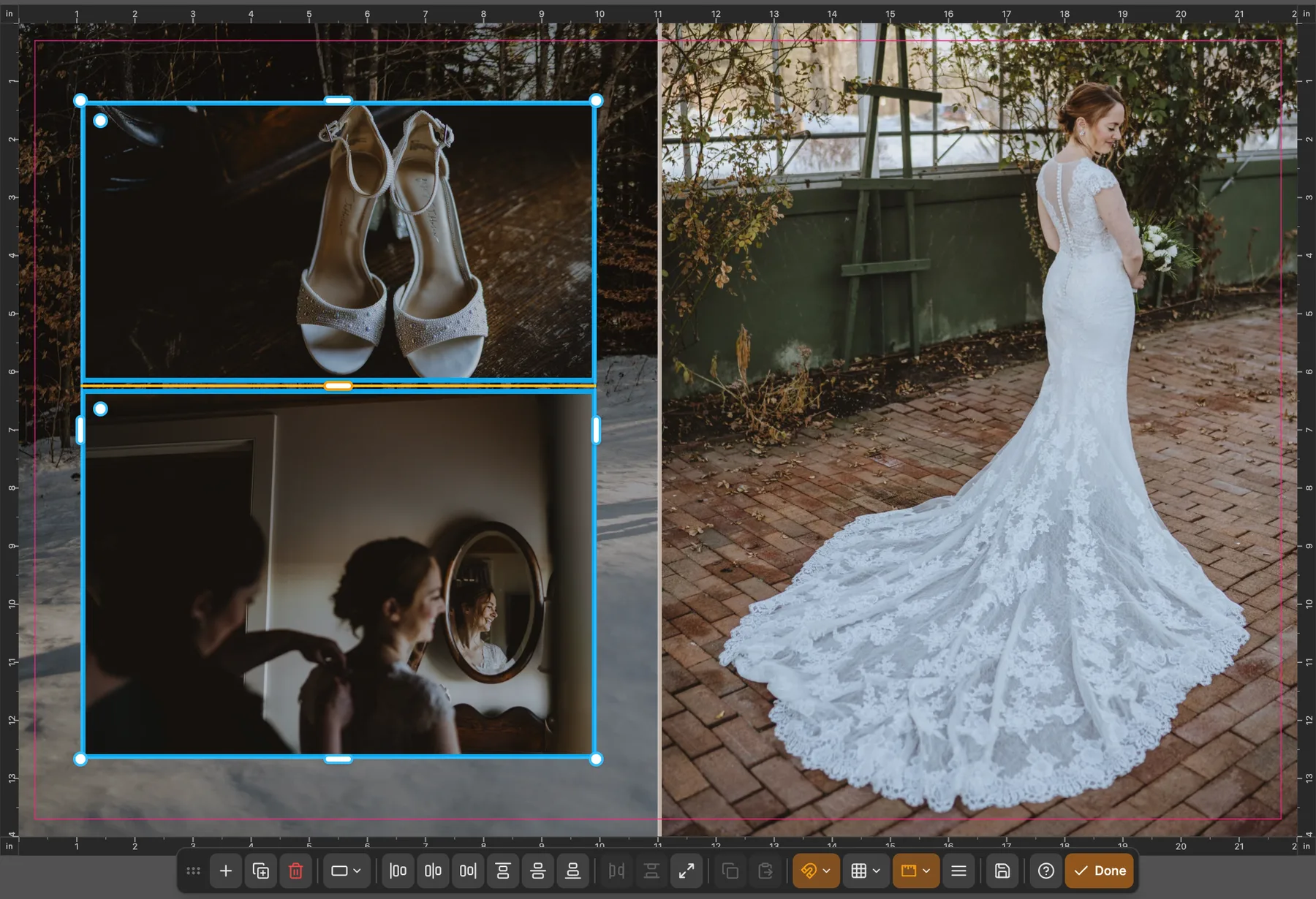
In the template editor (E), select two images next to each other. An orange line with a handle appears on the edge they share. Drag it and one frame gets smaller while the other grows into the space, in a single move. The photo in the frame that shrinks is cropped.
- Works on photos side by side or stacked. Select more than two and each shared edge gets its own handle; edges that line up move together.
- The handle snaps to guides as you drag. Hold Shift to drag without snapping.
- Afterwards, drag inside a photo to choose which part shows: Zoom and pan a photo inside its frame.
- Press E or click Exit Editor when you're done. To resize just one photo, see Resize an image placeholder.
More in Templates & template editor
See all 23Change the template on a spread or page26:52What are justified layouts?GuideBest fit vs Full library in the Templates panelGuideBest fit on a single page (L PAGE and R PAGE)GuideWhy Remove Image Gap is greyed out on justified layoutsGuidePreview a template before applying it27:42Favorite the templates you use most28:06Filter the templates panel28:20Use a template with more or fewer photos28:26Warning when a template has fewer slots29:09Open and close the template editor (E)33:04Copy and paste a placeholder in the template editor34:00Snapping guides in the template editor34:07Turn a snapping type off35:03Resize an image placeholder in the template editor36:09Set an exact aspect ratio on an image placeholder in the template editor36:51Save a custom templateGuideCustom templates in other projectsGuideI can't find a custom template I savedGuideA custom template won't saveGuideGet back to the built-in templatesGuideHide the on-canvas template arrows59:29