
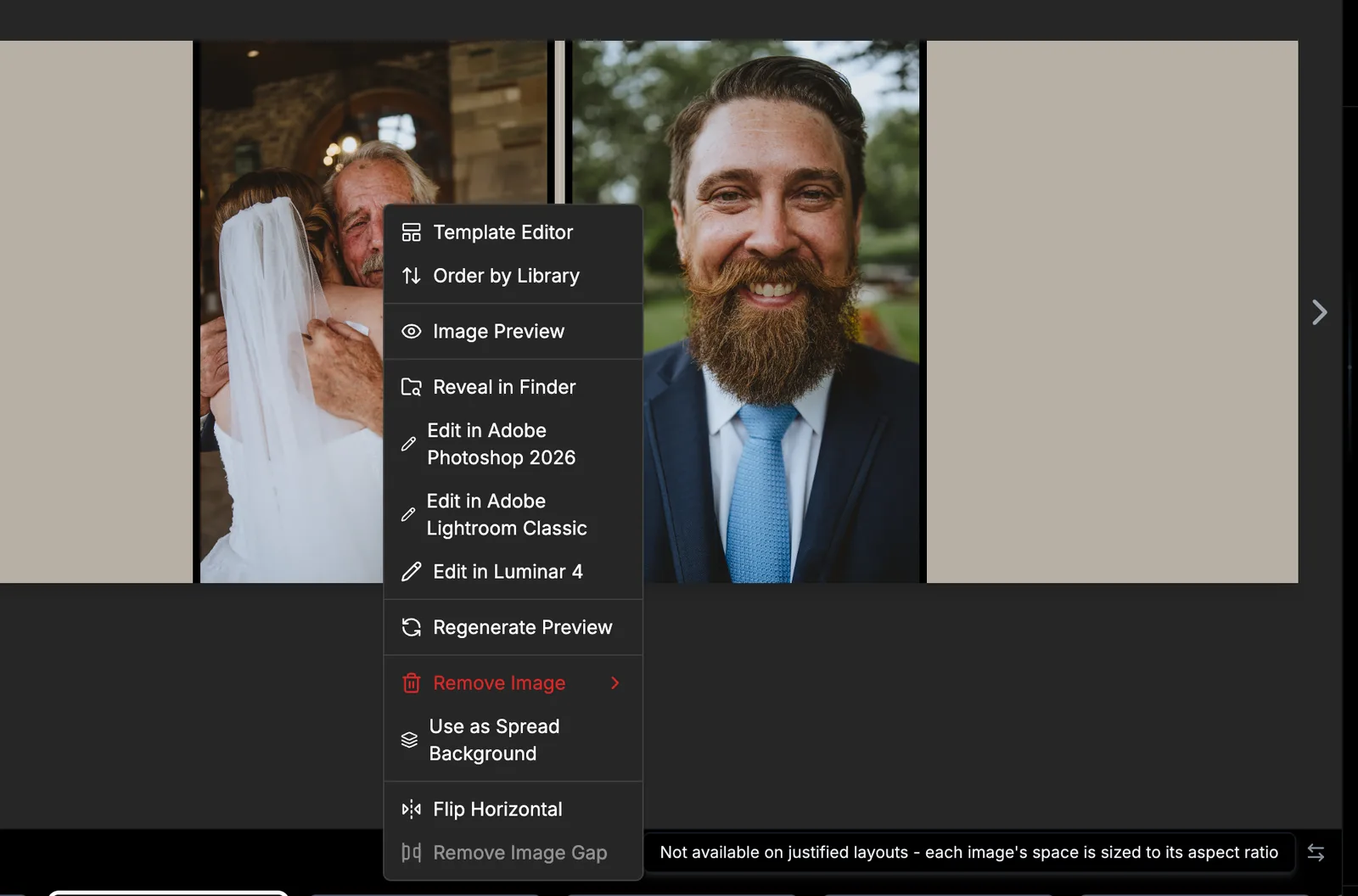
Why Remove Image Gap is greyed out on justified layouts
On a justified layout, Remove Image Gap (right-click a photo) and Remove Gap at Book Gutter are unavailable, because each photo's space is calculated from its aspect ratio and the project's image gap together. To change the spacing, change the image gap in Settings - justified layouts re-fit to the new gap exactly. To use those controls, switch the spread to a built-in template, or go into the Template Editor (E) and make any change to the layout. The moment you edit it, the justified layout becomes your own custom layout and the gap controls work again. Opening and closing the editor without changing anything leaves it justified.
More in Templates & template editor
See all 20Change the template on a spread or page26:52What are justified layouts?GuideBest fit vs Full library in the Templates panelGuideBest fit on a single page (L PAGE and R PAGE)GuidePreview a template before applying it27:42Favorite the templates you use most28:06Filter the templates panel28:20Use a template with more or fewer photos28:26Warning when a template has fewer slots29:09Open and close the template editor (E)33:04Copy and paste a placeholder in the template editor34:00Snapping guides in the template editor34:07Turn a snapping type off35:03Resize an image placeholder in the template editor36:09Set an exact aspect ratio on an image placeholder in the template editor36:51Save a custom template37:50Custom templates in other projects39:13Get back to the built-in templates40:01Hide the on-canvas template arrows59:29