Inner bleed and inner safety at the gutter
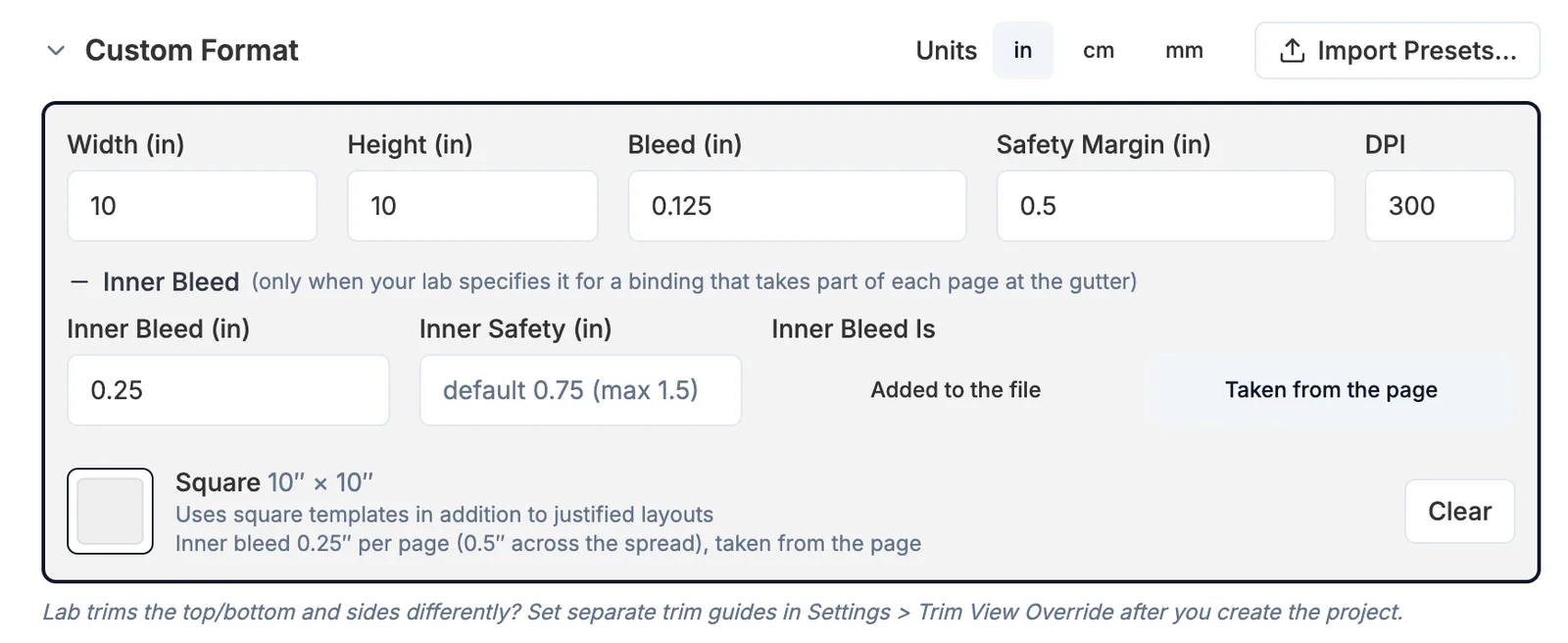
Some bindings take part of each page at the gutter. When you pick a size from a lab BookProofs supports, its inner bleed is already set for you. If you use a custom size, or a lab BookProofs doesn't support yet, and the lab specifies an inner bleed, you can add it yourself. On the new project screen, open Custom Format, click + Inner Bleed, and enter the inner bleed per page and, if you like, the inner safety.
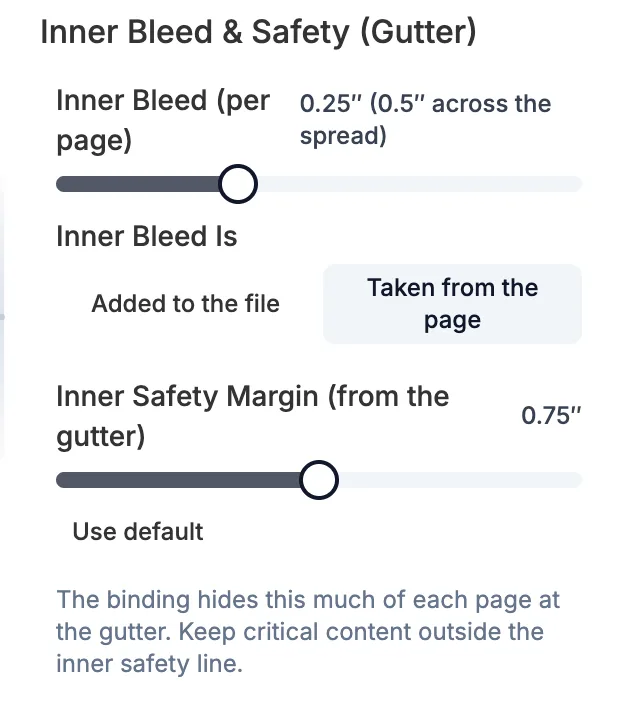
Then choose whether your lab's inner bleed is Added to the file or Taken from the page. Taken from the page: your pages export at their normal size and the binding hides that much of each page, so keep faces and text inside the inner safety line. Added to the file: each exported page is made wider at the gutter, so the binding takes the extra strip instead of your design. See Inner Bleed Fill.
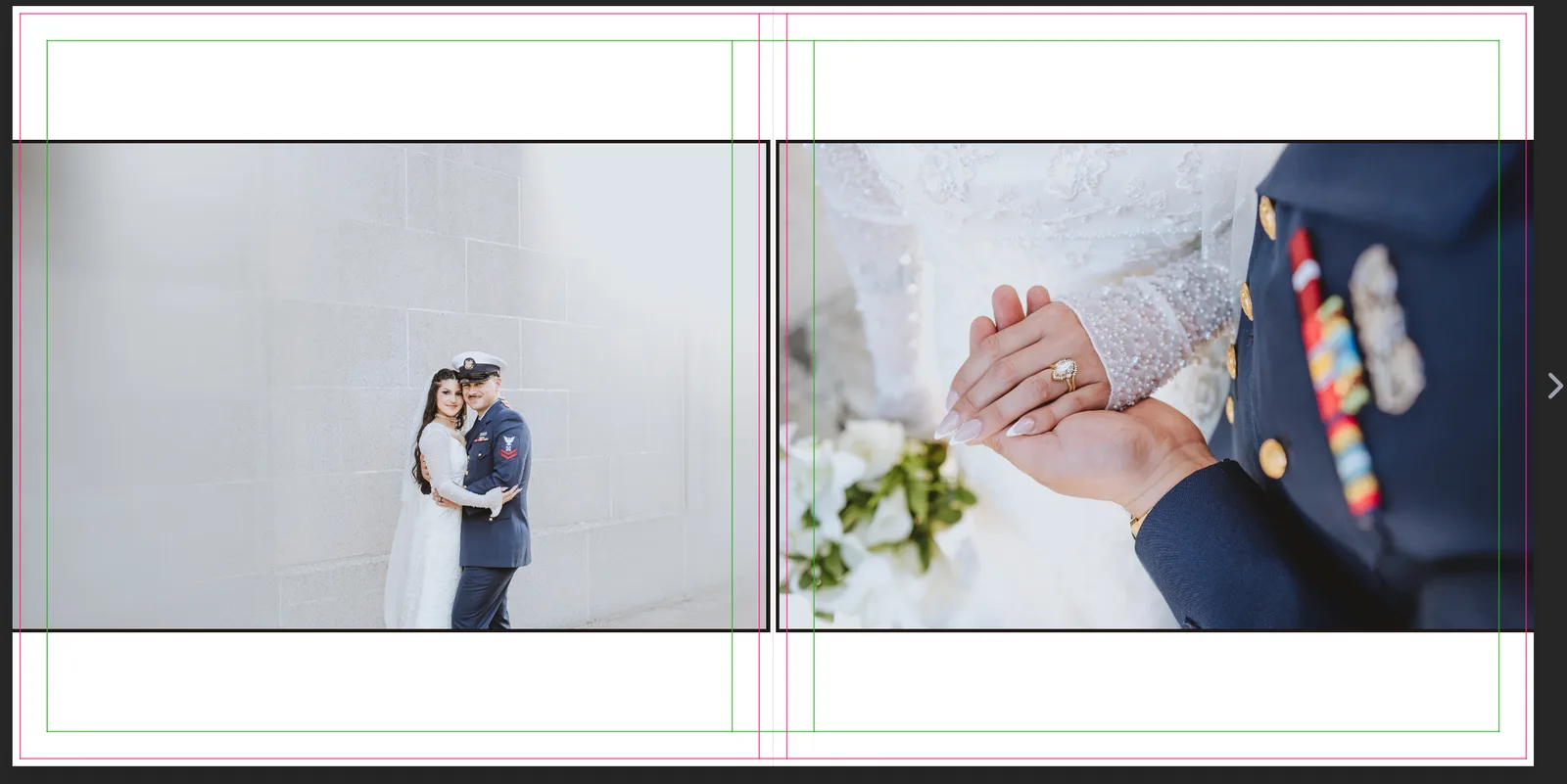
- Gutter guides show the inner trim and inner safety on each side of the fold while you design.
- Change the values later in Settings > Project Settings > Inner Bleed & Safety (Gutter).
- A supported lab's inner bleed is locked to its spec and cannot be changed.