
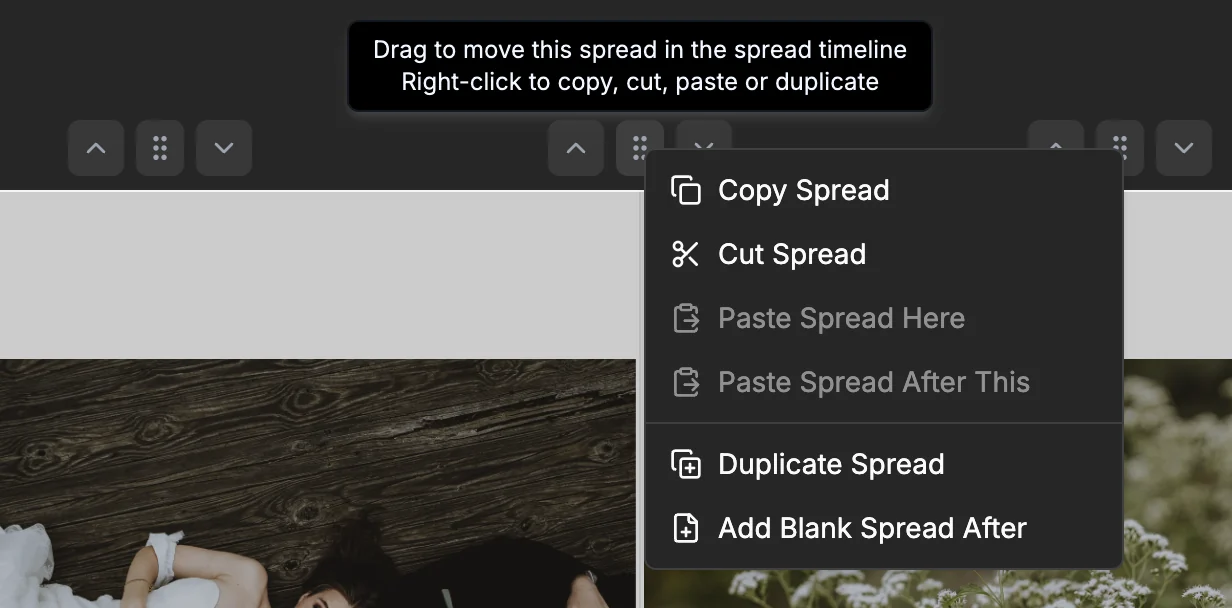
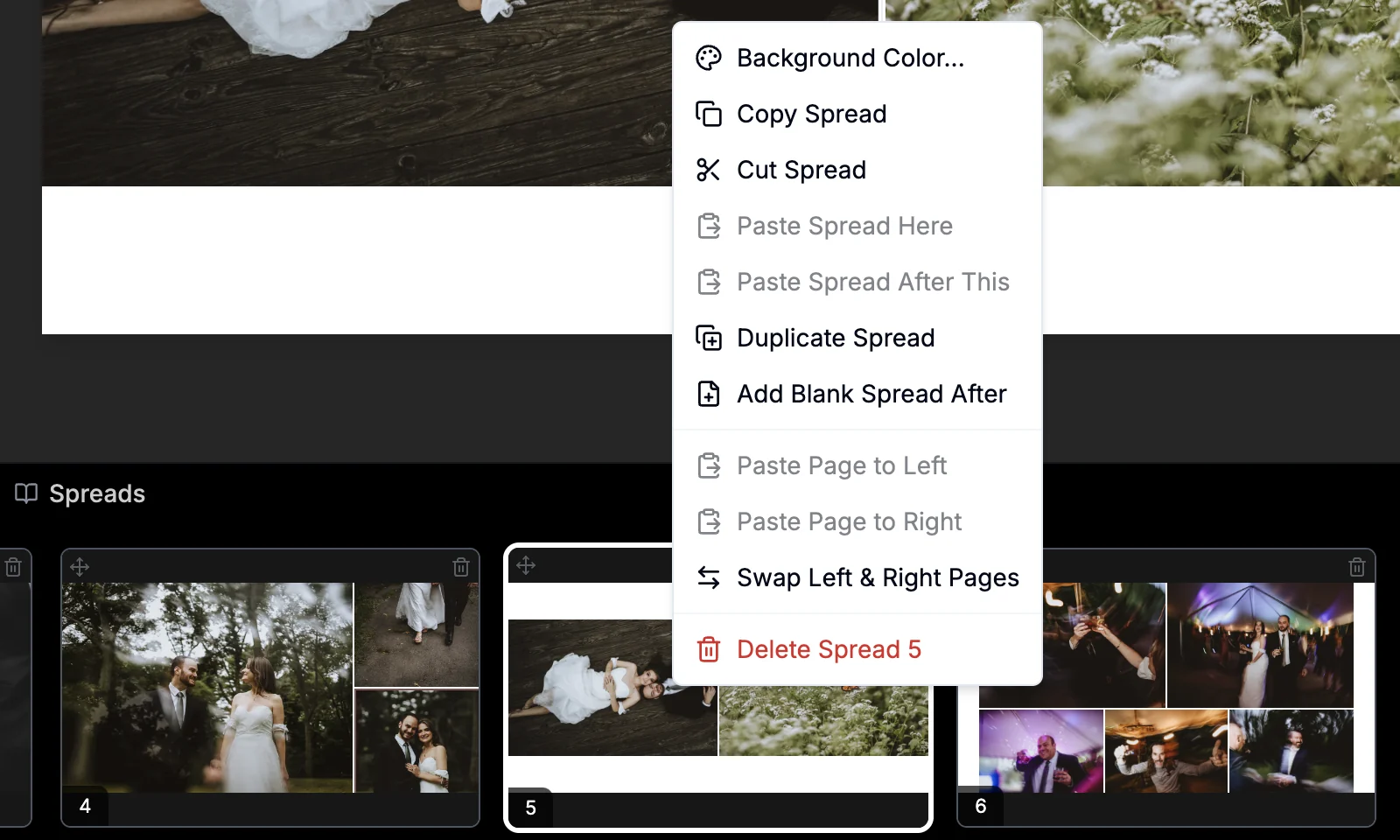
Add a blank spread after this one
Right-click the spread grab handle above the canvas, or the spread in the spread timeline, and choose Add Blank Spread After. An empty spread is inserted right after it, wherever it is in the book.
More in Designing Spreads & Pages
See all 38FlashDesign the whole book17:13FlashDesign from the right-click menu17:38Choose a Flash Design style: Templates, Justified or One per pageGuideOne photo per page with Flash DesignGuideSkip the Flash Design dialogGuideDropping more photos than a spread holds17:45Drag and drop photos onto a spread19:23The drag handle on each photo25:23Create a new spread19:53Create a spread from selected photos1:14Select several photos at once20:18Remove a photo from a spread20:43Choose how the layout rebuilds when you remove a photo0:14Rebuild only the page you removed from1:06Remove a photo but keep its slot1:24Replace a photo on a spread21:02Add photos to the left or right page only21:22Move photos to another spread22:17Edge drop overlays: move a photo to the next or previous spread23:25Drop Edges: add a photo right beside another photoGuideDrop areas in the spread timeline24:31Insert a spread between two others25:12Reorder spreads25:47Grab handles on every page and spread0:27Swap the left and right pages0:40Move a single page to another spread0:46Drop areas at the edges of the canvasGuideCopy, cut and paste a page1:06Copy, cut, paste or duplicate a spread1:31Move a spread with its grab handle1:53Why can't I move this page?GuideDelete spreads2:46Optimize a spread layout by aspect ratio (retired in 1.4.0)41:54Keep photo order on a spread42:50Put a spread back in library order (Order by Library)GuideConvert a whole spread to black and white44:13Move between spreads13:11