
Put a spread back in library order (Order by Library)
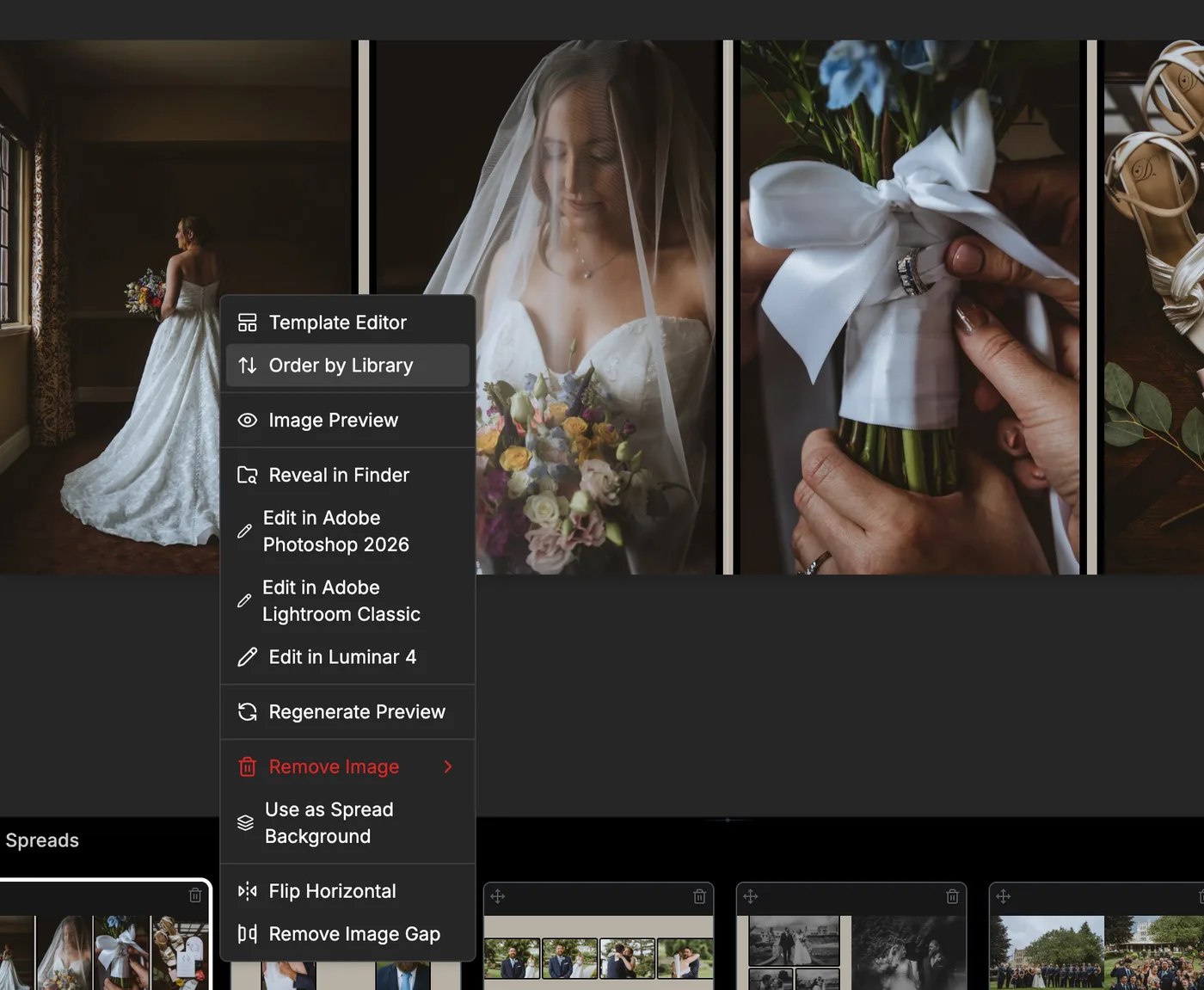
Right-click any photo on the canvas and choose Order by Library, or press |. The photos on the spread are re-placed in the order they sit in your photo library, keeping the current layout. On a justified layout, the photos stay uncropped and each takes a cell shaped for it. It needs at least two photos on the spread, and replaces the Resequence button from earlier versions.
More in Designing Spreads & Pages
See all 25FlashDesign the whole book17:13FlashDesign from the right-click menu17:38Dropping more photos than a spread holds17:45Drag and drop photos onto a spread19:23The drag handle on each photo25:23Create a new spread19:53Create a spread from selected photos1:14Select several photos at once20:18Remove a photo from a spread20:43Choose how the layout rebuilds when you remove a photo0:14Rebuild only the page you removed from1:06Remove a photo but keep its slot1:24Replace a photo on a spread21:02Add photos to the left or right page only21:22Move photos to another spread22:17Edge drop overlays: move a photo to the next or previous spread23:25Drop areas in the spread timeline24:31Insert a spread between two others25:12Reorder spreads25:47Delete spreads2:46Optimize a spread layout by aspect ratio (retired in 1.4.0)41:54Keep photo order on a spread42:50Convert a whole spread to black and white44:13Move between spreads13:11