Installing BookProofs
If it doesn't, click here to download manually
Open the downloaded file
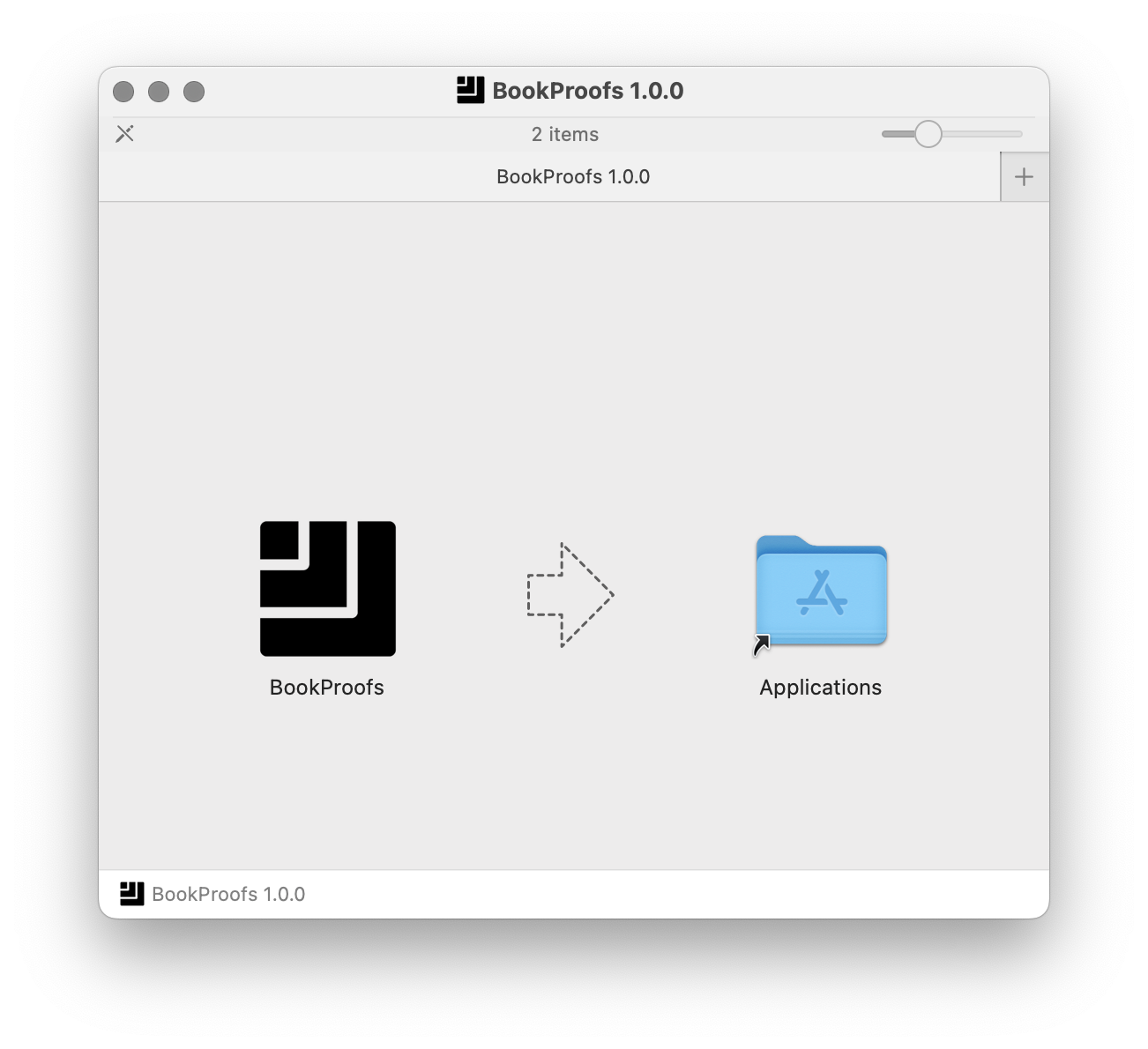
Find BookProofs-1.4.1.dmg in your Downloads folder and double-click to open it.
Drag to Applications
Drag the BookProofs icon to the Applications folder.
Confirm and open
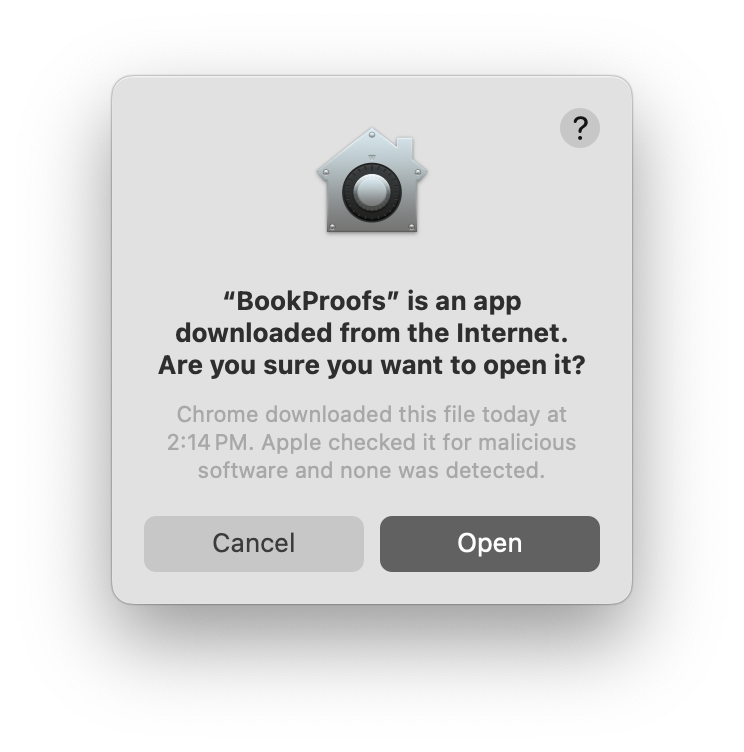
When you first open BookProofs, macOS will confirm it's an app downloaded from the Internet. Apple has verified the software and no malicious software was detected. Click "Open" to continue.
Launch and get started
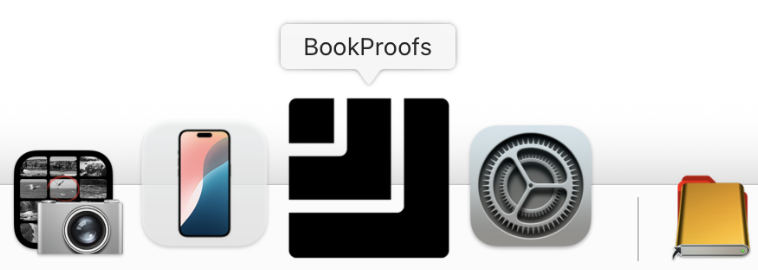
Open BookProofs from your Applications folder. You'll see it appear in your Dock.
First launch takes longer: macOS performs a security check on first run, which may take 30-45 seconds. You'll see the icon bouncing in the Dock—this is normal. Subsequent launches will be much faster.
Activate your license (optional)
If you've purchased a license, go to Help → Activate License and enter the email and password from your purchase confirmation email. This unlocks full-resolution export.
No license yet?
No problem! Design freely in demo mode. You can purchase anytime here to unlock export.
Updating from a previous version?
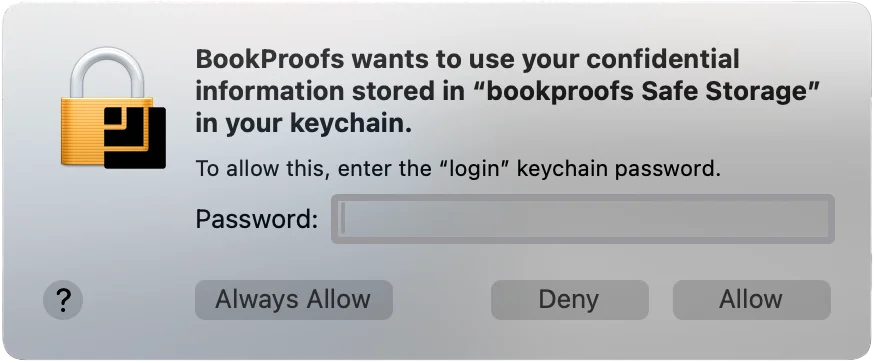
After updating, macOS may ask for your login keychain password the first time you open the new version. This is a standard macOS security check — BookProofs securely stores your license credentials on your Mac, and macOS verifies the updated app is allowed to access them.
Enter your Mac login password and click "Always Allow" to prevent this prompt from appearing on future updates.