
Add your own type or logo to the cover (overlay image)
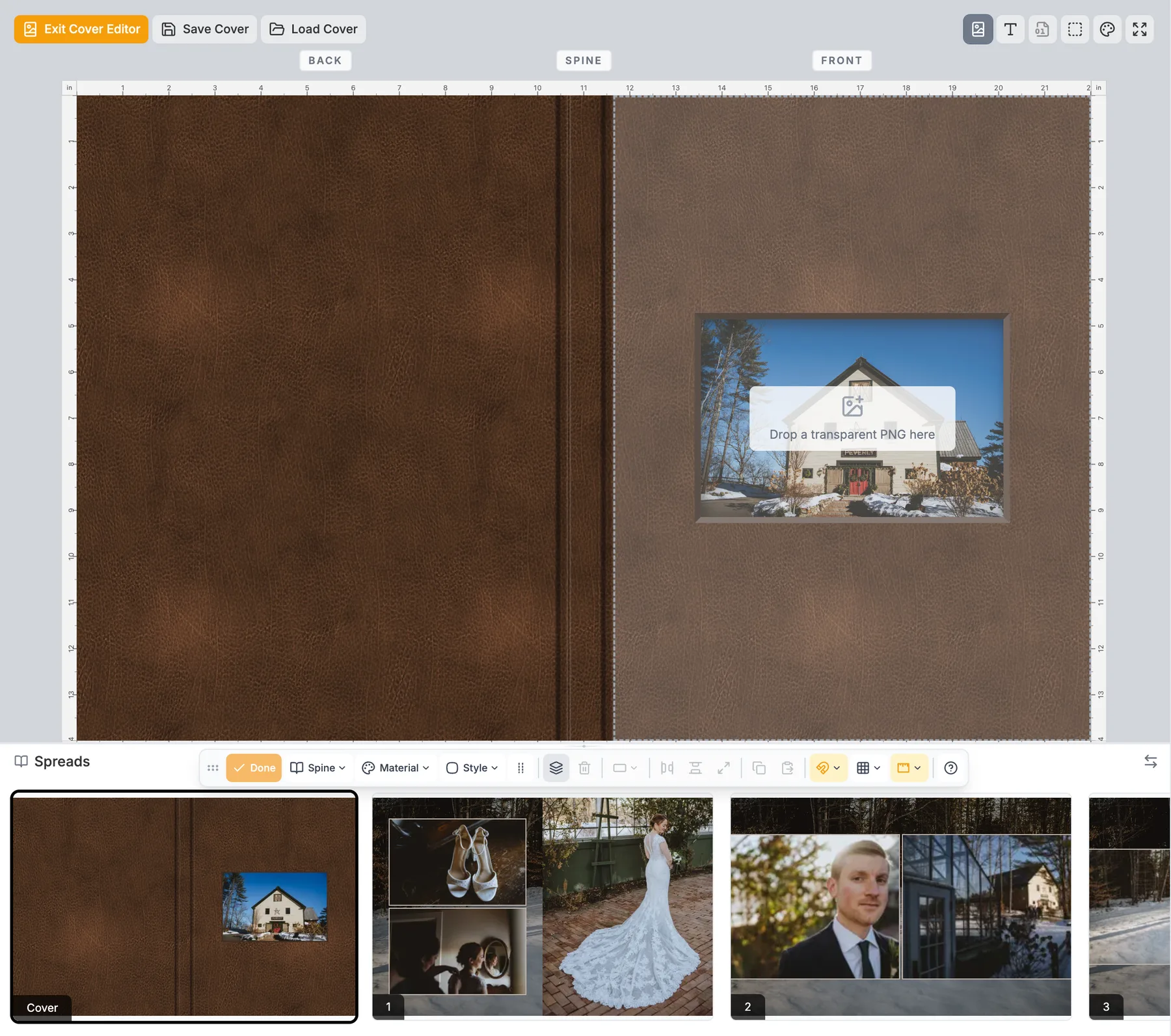
An overlay image is a transparent PNG that sits above your cover photo, for typography set in Photoshop or a studio logo. Add the PNG to your Photo Library, open the Cover Editor, click the layered icon in the cover toolbar, then drag the PNG from the Photo Library onto the box that says "Drop a transparent PNG here".
- The image is fitted whole and centered. Move, resize, replace or delete it in the Cover Editor.
- The cover holds one photo, plus one overlay image.
- Click the layered icon again to remove the overlay image.
- A file dropped from your computer straight onto the cover only goes into the Photo Library. Drag it onto the box from there.
More in Covers & text
See all 16Add a cover to a book0:05Cover comps are for client proofing0:03Put a photo on the cover (cameo)0:12A cover cameo keeps its own corner rounding1:31Open the cover editor (E)0:24Set the spine width and style0:38Crease style and binding depth0:48Choose a cover material0:58Use a custom texture from your print vendor1:18Round the cover corners and set the cameo cutout1:35Add text1:56Greek and Cyrillic textGuideText effects: debossing, foils and more2:07Style part of a text block on its own1:02Save a cover and reuse it2:18