
Keep the frame filled when you rotate a photo
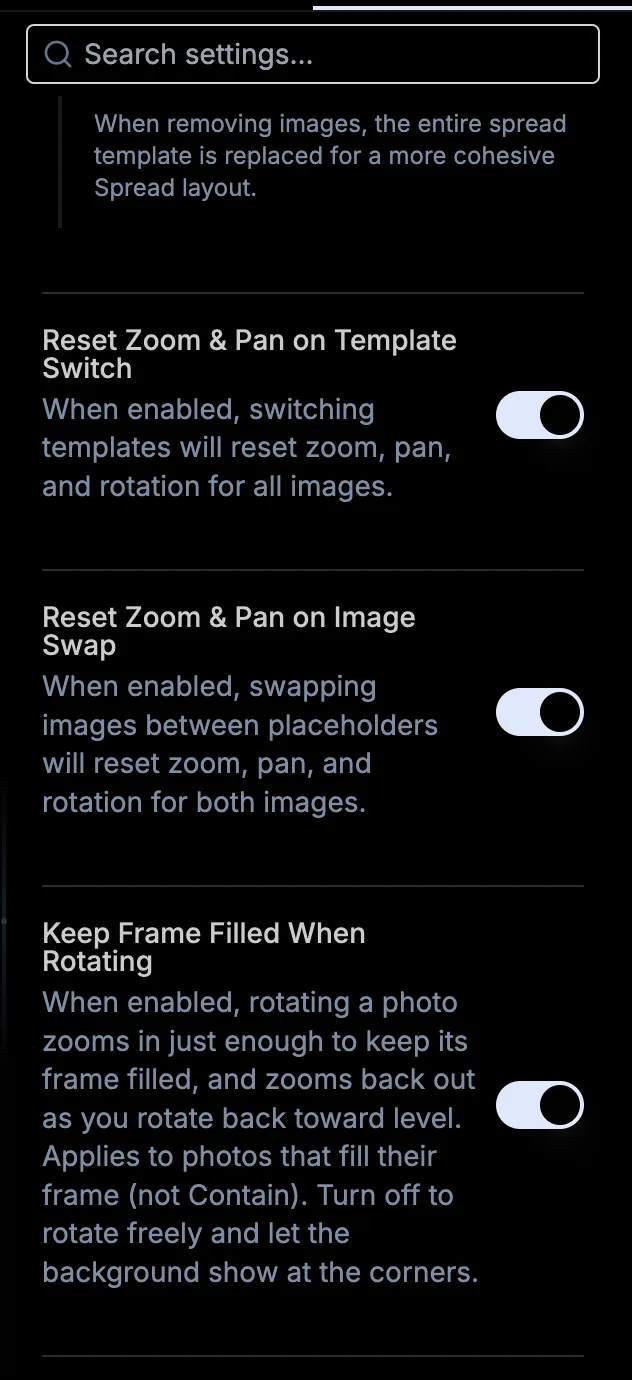
When you rotate a photo to straighten it, BookProofs zooms in just enough to keep the frame filled, and zooms back out as you rotate back toward level, so the background never peeks through at the corners. It's on by default and applies to photos that fill their frame (not Contain). To rotate freely and let the background show at the corners, turn off Keep Frame Filled When Rotating in Settings.
More in Editing photos on canvas
See all 22Zoom and pan a photo inside its frame30:14Pinch to zoom a photo inside its placeholder1:10Flip a photo horizontally to mirror it0:06Rotate a photo or straighten a horizon30:50Reset zoom, pan and rotation31:23Adjust exposure on canvas31:41Convert a single photo to black and white31:56Rounded corners on images and color fills1:14Rotate an image in small, precise steps1:37Round every corner in the project at once1:05Put individually rounded corners back on the project setting1:20Make an album photo match your Lightroom black and whites1:50Edit in Photoshop and round trip back4:04Point BookProofs at Photoshop or another editor1:01:23Where edited photos are saved4:42Edit in Lightroom and round trip back7:04Lightroom export settings for a round trip7:33Round trip a group of photos at once8:52Fit a whole photo inside a placeholder (contain)55:09Subject and face detection (beta, being retired)56:48Show the file name when you hover on canvas56:30